How Excel & JSON Bulk Imports Work
Skip tedious manual clicks! Learn how to bulk-load your entire university or college schedule with our automated Excel Multi-Sheet System or compile conflict-free schedules live with JSON Routine Import.
Excel Bulk Setup
Instead of typing every department, semester, subject, and teacher by hand, you can organize your data in a single Excel file (.xlsx or .xls). Routine Gen automatically reads all 3 sheets simultaneously.
Departments & Timing
In this sheet, each row represents one semester. You can give different semesters completely independent start times, periods per day, and tiffin breaks!
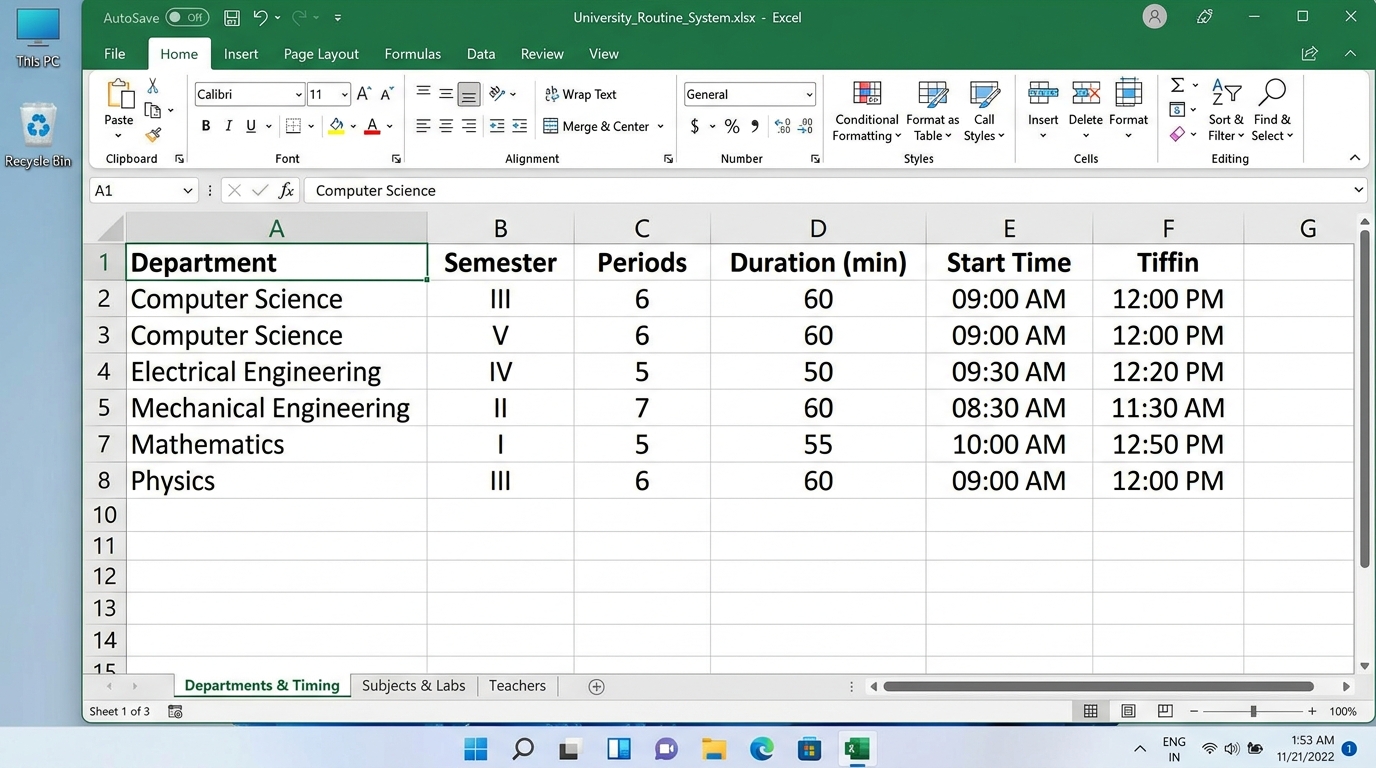
| Column Name | Example | How Routine Gen Uses It |
|---|---|---|
| Department | BCA, BBA, B.Tech |
Automatically creates the department if it doesn't already exist. |
| Semester | Semester 1, Sem 2, 3 |
Creates the semester for that department (e.g. "Semester 1"). |
| Periods/Day | 8, 6 |
Number of class periods scheduled per day for this semester. |
| Period Duration (mins) | 45, 50 |
Length of each normal teaching lecture in minutes. |
| Start Time | 09:00, 10:00 AM |
College start time for this semester. Independent per semester! |
| Tiffin After Period # | 4 |
Slot after which the lunch/tiffin break takes place. |
| Tiffin Duration (mins) | 30 |
Duration of the lunch/tiffin break in minutes. |
Subjects & Labs
Labs will automatically get Lab (1 period) and Lab Extended (2 periods) variants in Routine Gen! Subjects that only appear in Subjects will remain pure theory automatically without you having to re-type anything.
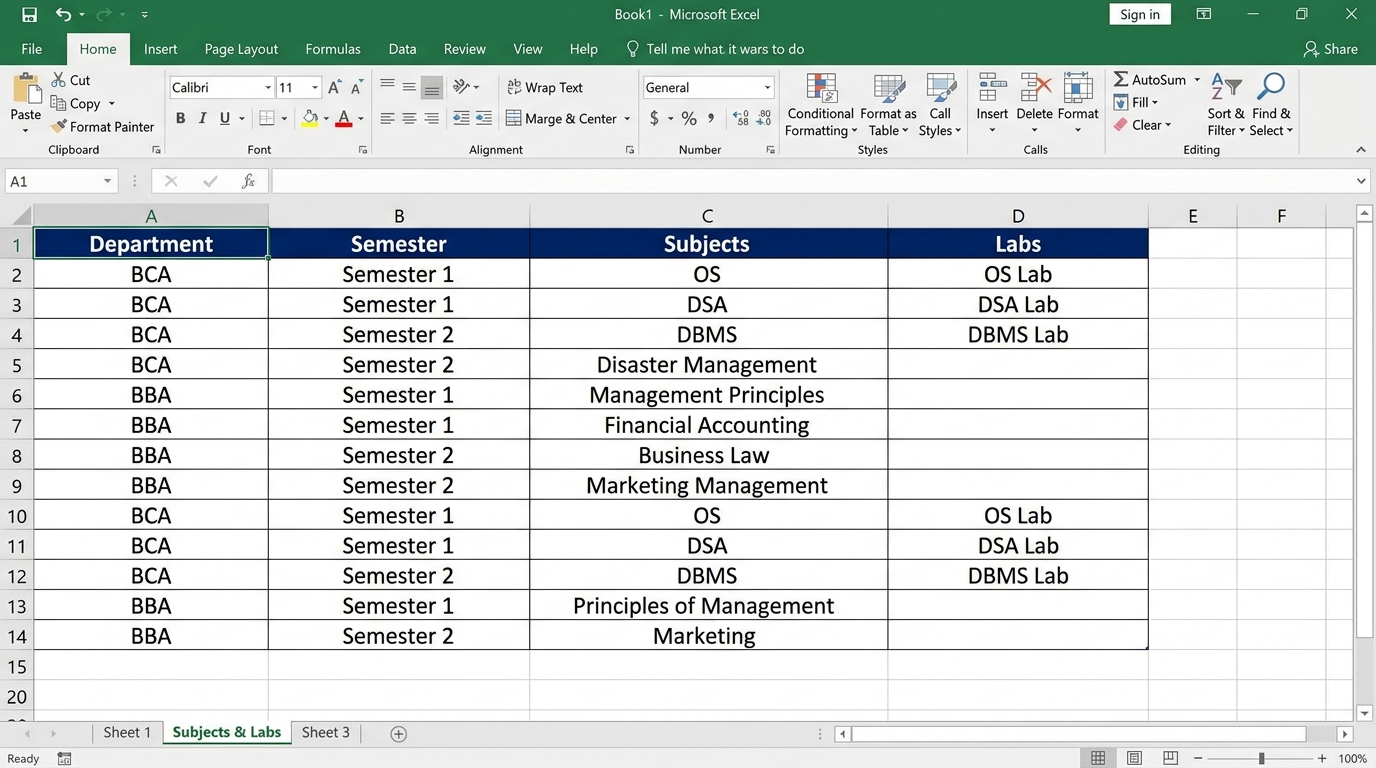
| Column Name | Example | Behavior & Rules |
|---|---|---|
| Department | BCA, BBA |
Matches the department from Sheet 1. |
| Semester | Semester 1, Semester 2 |
Matches the semester from Sheet 1. |
| Subjects | OS, DSA, Disaster Management |
Comma-separated list of all subjects taught in this semester. |
| Labs | OS, DSA (leave blank for pure theory) |
Any subject listed here automatically gets Theory, Lab (1 period), and Lab Extended (2 periods) options in the routine builder. |
Teachers (Faculty)
Register all teachers in one place. You can specify which days they teach (e.g. Mon, Tue, Wed) and their shift hours.
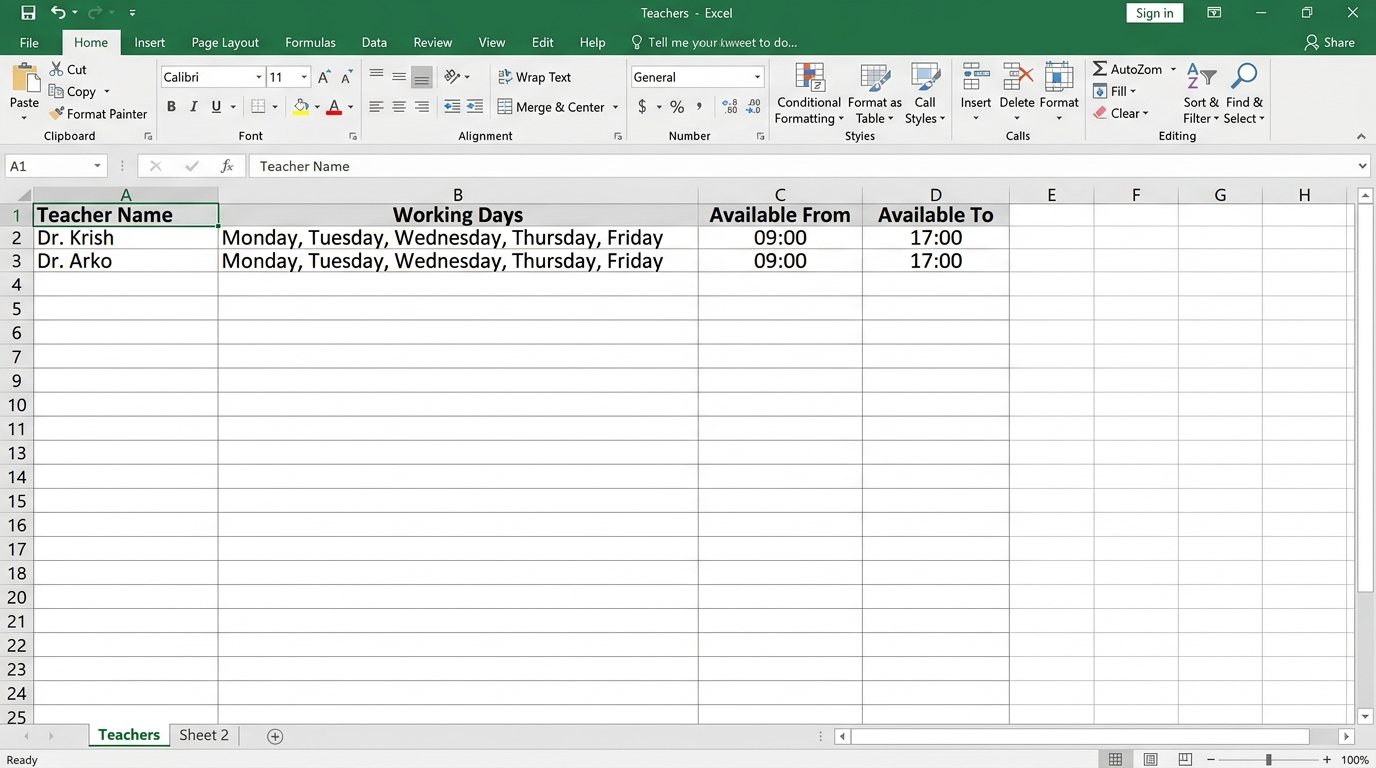
| Column Name | Example | Behavior & Rules |
|---|---|---|
| Teacher Name | Dr. Krish, Dr. Arko |
Full name or title of the faculty member. |
| Working Days | Mon, Tue, Wed, Thu, Fri |
Comma-separated days when this teacher is on campus. Short or full day names work! |
| Available From | 09:00 (leave blank for all day) |
Optional start time of their shift (e.g. 9:00 AM). |
| Available To | 17:00 (leave blank for all day) |
Optional end time of their shift (e.g. 5:00 PM). |
Where to Upload in the Routine Gen App
JSON Routine Import
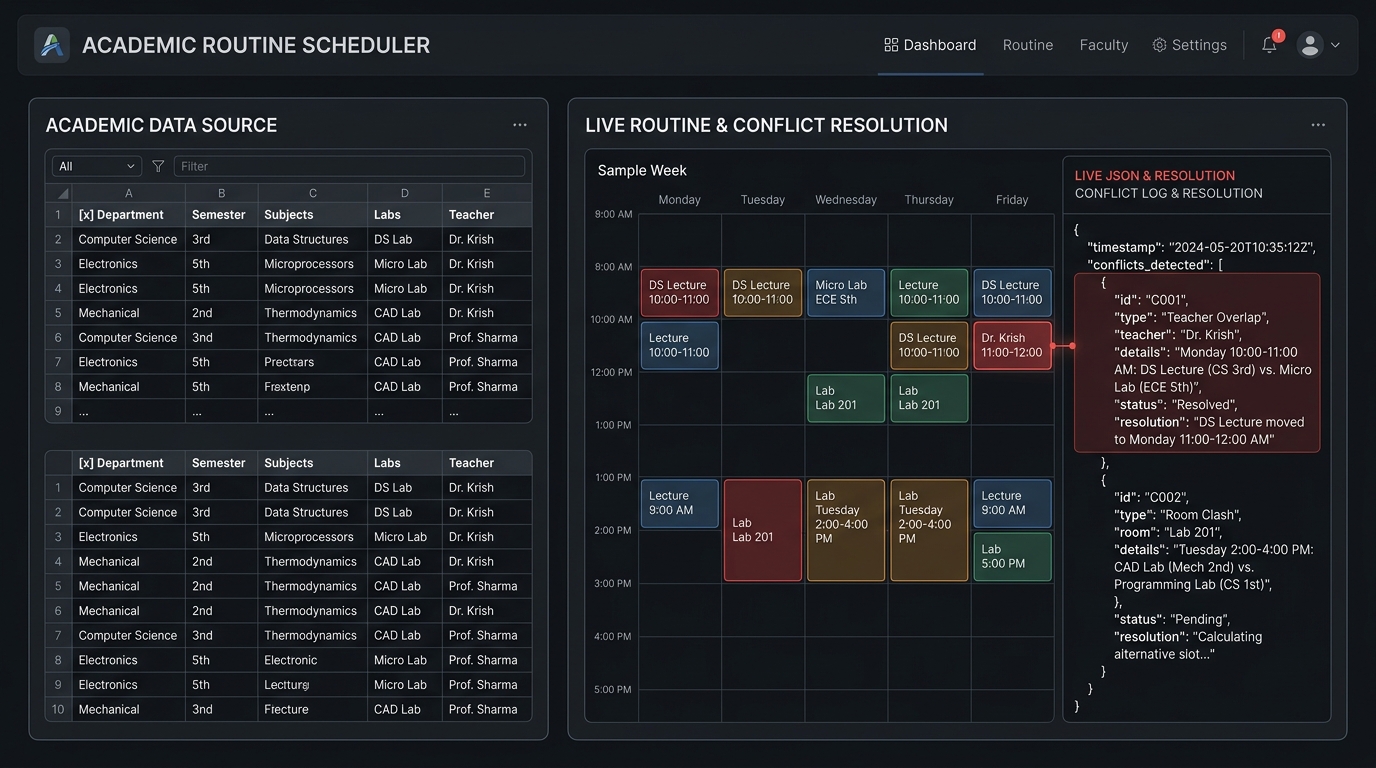
The JSON Import tool is designed for institutions, developers, or administrators who have structured timetable records. As classes are added, our engine detects teacher overlaps across any department or semester in real-time and lets you resolve them on the fly.
JSON Schema Anatomy
Your JSON object contains 3 main sections:
settings: Global default periods, duration, start time, tiffin break, and working days.teachers(optional): Restrict teachers to specific working hours (e.g.availableFrom: "11:00").entries: Array of class slots withdepartment,semester,day,period,subject,teacher, andtype.
Supported Class Types:
filler classes (like Library or Sports Period) don't tie down any teacher, completely bypassing clashes.
Live Conflict Resolution
When a teacher is already booked in Department A, and a second class tries to schedule them in Department B during an overlapping clock time, Routine Gen flags a Conflict in the Live Build Status!
- Auto-Place: Automatically scans the entire week to find the earliest free, non-clashing slot for this section and moves the class there.
- Add Library / Other Class: Fills that exact slot with a placeholder (Library, Sports, Seminar) for 1 or 2 periods so students don't have an empty gap.
Ready-to-Copy JSON Template
{
  "settings": {
    "periods": 5,
    "periodDuration": 45,
    "startTime": "12:00",
    "tiffinPeriod": 3,
    "tiffinDuration": 45,
    "workingDays": ["Monday", "Tuesday", "Wednesday", "Thursday", "Friday"]
  },
  "teachers": [
    { "name": "Dr. Krish", "availableFrom": "11:00", "availableTo": "18:00" },
    { "name": "Dr. Arko", "availableFrom": "12:00", "availableTo": "17:00" }
  ],
  "entries": [
    { "department": "BCA", "semester": "Semester 1", "day": "Monday", "period": 1, "subject": "C Programming", "teacher": "Dr. Krish", "type": "theory", "timing": { "startTime": "12:00" } },
    { "department": "BCA", "semester": "Semester 1", "day": "Monday", "period": 2, "subject": "Digital Logic", "teacher": "Dr. Arko", "type": "theory", "timing": { "startTime": "12:00" } },
    { "department": "BCA", "semester": "Semester 1", "day": "Monday", "period": 4, "subject": "Programming Lab", "teacher": "Dr. Krish", "type": "lab_extended", "timing": { "startTime": "12:00" } },
    { "department": "BCA", "semester": "Semester 2", "day": "Monday", "period": 1, "subject": "Data Structures", "teacher": "Dr. Krish", "type": "theory", "timing": { "startTime": "13:00" } }
  ]
}
Frequently Asked Questions
Can different semesters have different timings?
Yes! Each semester can have its own start time (e.g. BCA Sem 1 starts at 9:00 AM, but BCA Sem 2 starts at 10:00 AM). Routine Gen checks teacher conflicts based on actual clock minutes, not arbitrary period numbers.
What if a teacher is available all day?
Simply leave the "Available From" and "Available To" fields blank in the Excel sheet or web form. The teacher will be available for any period during their working days.
How do I export or print the routines?
In Step 4, click "Save PDF" on any individual semester table to download a crisp, printer-ready PDF, or click "Export All PDFs" at the top to download every semester routine in a single batch.
Does this work smoothly on mobile?
Yes! Routine Gen has a responsive 4-step progress tracker, touch-sized teacher day toggles, and sticky Day and Teacher columns so you can pan across timetable schedules on your smartphone without losing your place.